Quick Start Guide
This guide will help you get started with running Dashboard Widgets on your macOS device.
Download
First, you need to download the app. The only official source is the GitHub repository at https://github.com/nikolan123/WidgetPortingToolkit.

First Launch
Double-click the downloaded DMG and drag the app into your Applications folder.
Since this app has not been notarized by Apple (costs a lot of money), there are extra steps required to open it. To open it:
- macOS Ventura (13) and later: System Settings → Privacy & Security → scroll down and click "Open Anyway". Authenticate if prompted.
- macOS Monterey (12) and earlier: System Preferences → Security & Privacy → click "Open Anyway". Authenticate if prompted.
- Alternative method (Sonoma 14 and earlier): Right-click the app → Open → Open Anyway.
- Terminal method (any version):
xattr -d com.apple.quarantine /Applications/Widget\ Porting\ Toolkit.app
You can then open the app normally.
Initial Setup
You need a folder containing various shared resources the widgets use called WidgetResources. On first launch, the welcome guide can automatically download and install the provided copy for you, or you can get it yourself and select it manually.

To install a new WidgetResources folder after initial setup, go to Options > Install Support Directory and choose your WidgetResources folder. This copies the selected WidgetResources folder into the app's data directory. Existing widgets may need to be removed and re-added to use the new copy.
How to use
First off, you need widgets. You can check out the guide on where to get widgets from:
Now let's go over the major aspects of the app
Installing Widgets
To install a widget, drag the .wdgt bundle to the main app window. A new window should open.
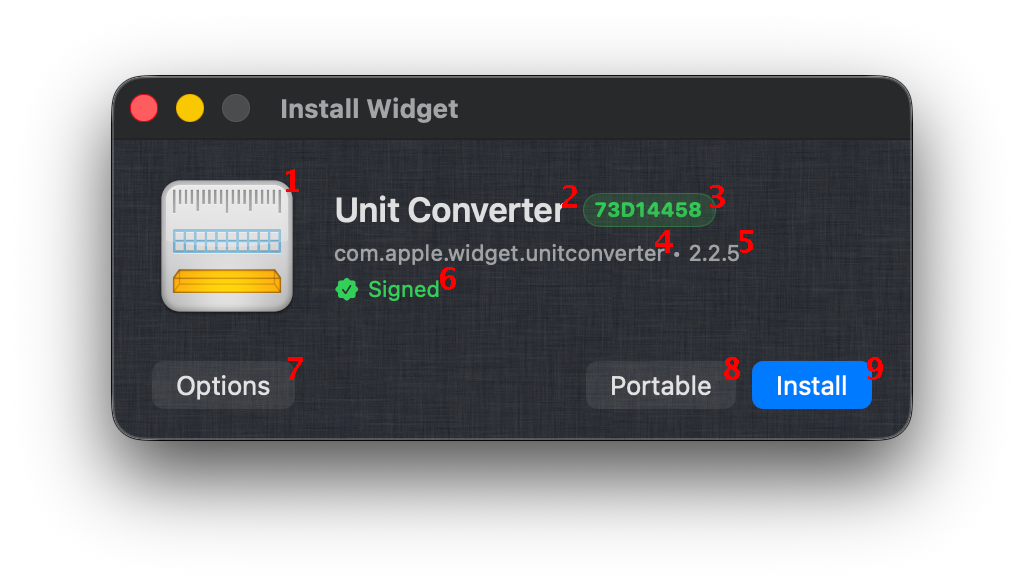
- 1 The widget's icon.
- 2 The widget's name.
- 3 A unique identifier generated by the app used to differentiate multiple installations of the same widget.
- 4 The widget's bundle identifier.
- 5 The widget's version.
- 6 The widget's codesign status. Can be Signed, Tampered, or in most cases Not signed as only a few newer Apple widgets are signed.
- 7 Opens the Tweaks Sheet, which is explained later in the guide.
- 8 Runs the widget as a temporary portable instance without copying it into the app's library.
- 9 Installs the widget normally.
Main Window
The main app window is what you use to manage your widgets. From there you can add, delete and modify widgets.
Fullscreen Mode
To go into fullscreen mode, maximize the main app window.
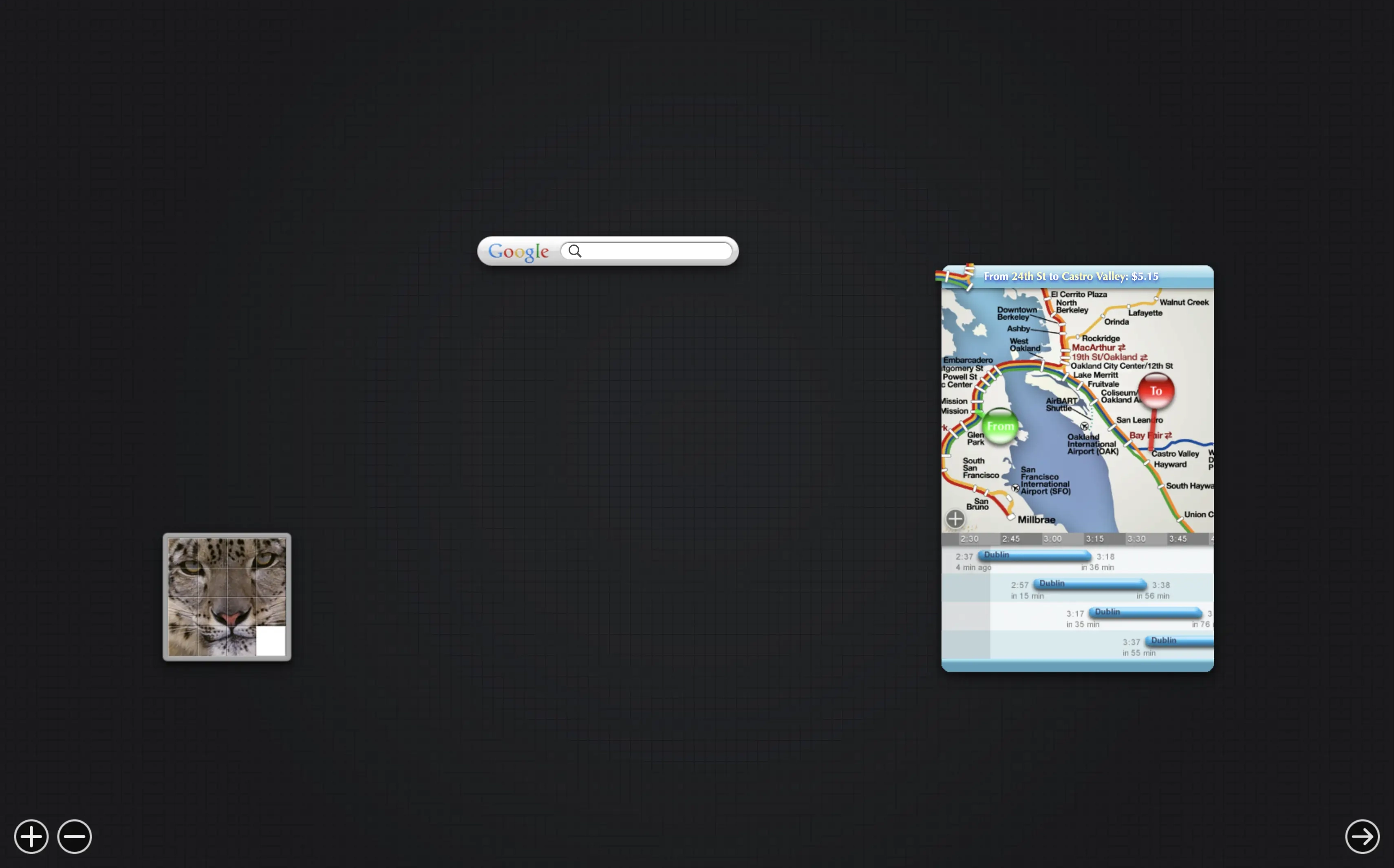
In fullscreen mode, widgets are managed from the + menu. There you will see a grid of your installed widgets. Widgets are grouped by their bundle identifier. To open a widget, click on its icon. If there are multiple widgets with the same bundle identifier, doing that will open a menu from which you can choose which one to open. That menu also allows you to duplicate, delete and modify widgets. To force it to open, ⌥-click the widget's icon. The "New Instance" button duplicates the first instance in the list.
Overlay
The overlay allows you to resize, close and pin open widgets. To access it, hold ⌥ while focused on a widget.
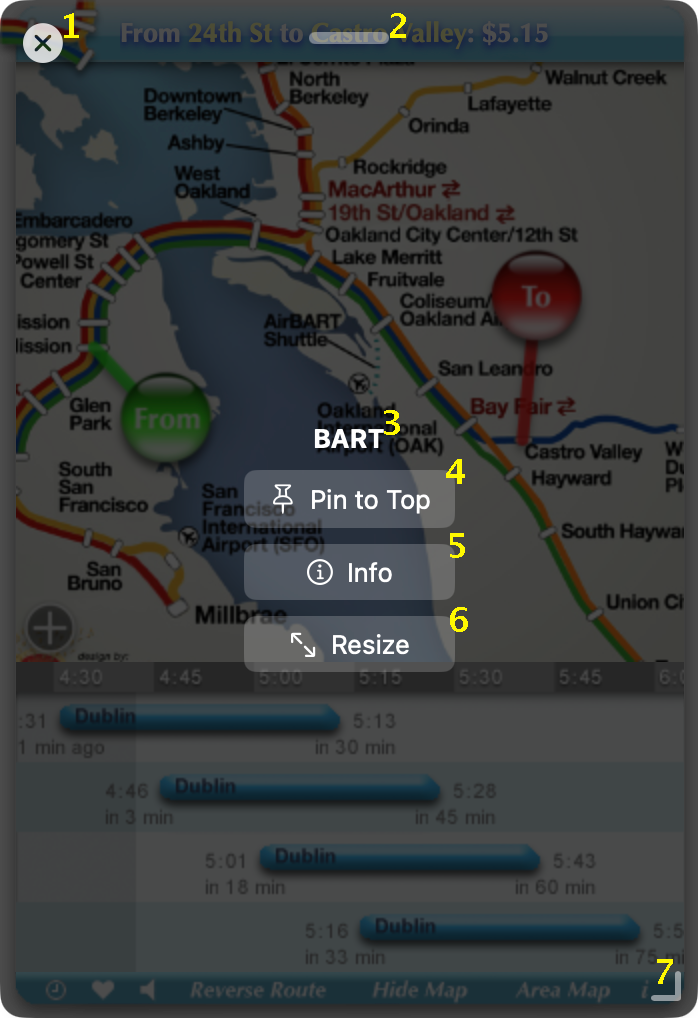
- 1 Close button.
- 2 Handle to move the window.
- 3 The widget's name.
- 4 Keeps the widget on top of all other windows.
- 5 Shows more information about the widget.
- 6 Reset the widget's size to default or type it in.
- 7 Handle to resize the window.
Tweaks Sheet
There are a number of tweaks that help old widgets run. The tweaks sheet is what you use to set what tweaks a specific widget should use.
- To access the Tweaks Sheet from the main app window, click the button with the horizontal sliders on the widget you want to modify tweaks for.
- To access the Tweaks Sheet from the install window, click the button labeled "Options".
- To access the Tweaks Sheet from fullscreen mode, go to the + menu and ⌥-click the widget you want to modify tweaks for, then click the button with the horizontal sliders next to the appropriate widget in the new menu that opens.
Now let's go over each tweak and what it does. There are 2 types of tweaks - Runtime and Preprocessing.
Runtime tweaks are applied when the widget is loaded. They can be toggled on and off at any time and apply the next time you close and reopen the widget.
- Recreate Dashboard API - Recreates the original Dashboard API. Includes stuff such as system command execution, persistant data, animations, and more.
- Allow system command execution - Lets widgets run system commands through the native bridge.
- Don't ask when running system commands - Skips the confirmation prompt before those system commands run.
- Inject Helper CSS - Helps make the widgets feel like native apps - disables dragging images and native browser scroll.
- Proxy XMLHttpRequest - Overwrite the XMLHttpRequest and make the requests from Swift instead. Sometimes helps with CORS issues.
- Transparent Background - Without this, the widget background will be white instead of transparent.
- Use native window shadow - Uses AppKit's native window shadow instead of the custom shadow path. Recommended on macOS Sequoia and earlier.
Preprocessing tweaks are applied when the widget is installed. To change these, you need reinstall the widget and choose your desired tweaks from the install window.
- Replace appropriate file paths - Fix hardcoded paths to system directories and widget resources.
- Copy Support Directory - Lets the widget use shared resources. Without this, many will be broken.
- Fix self-closing <script /> tags - Fixes the old weird self-closing script tags. Fixes a small amount of widgets.
- Add a blank localizedStrings.js if it doesn't exist - This does almost nothing and just prevents a console error which annoys me.
Options Menu
The options menu in the menu bar lets you change various global settings.
- Silent Mode - Don't show the install window when installing widgets. Also silences all install errors.
- Auto Open Widget on Install - Whether to automatically open the widget after installing.
- Don't Copy Widgets - Only available when Silent Mode is on. Loads widgets without copying them into the app's library.
- Launch in Full Screen by Default - The application will launch in fullscreen by default.
- Borderless Widgets - Controls whether widgets use borderless windows.
- Allow multiple instances of the same widget - Allows multiple instances of the same widget.
- Set Default Language - Set the global default for widget languages.
- Install Support Directory... - Install the WidgetResources directory. This is also done in the initial setup.
- Open Widget Exporter... - Open the dedicated widget export window.
- Open Data Folder... - Open the application's data folder containing the support directory and installed widgets.
- Reset All Data - Resets the whole application including installed widgets and widget preferences.
- Show Welcome Guide... - Shows the initial setup again.